How to use BLKH01E.
What each part of the app is for, where every setting lives, and which configuration matches the protection you actually need. Written for someone who has just installed it.
The home screen, part by part
Everything starts here. The row of squares at the top are the actions, the bar below searches inside the vault, and the cards are your drawers, each showing how many items it holds.
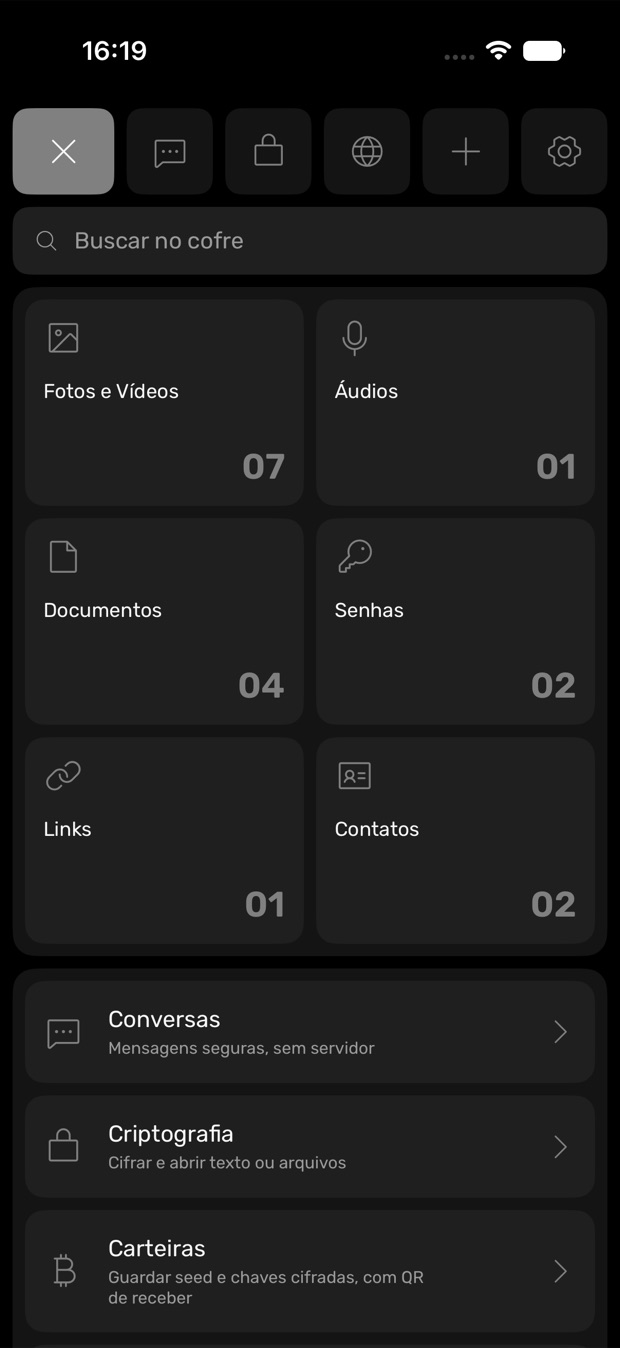
- The yellow X, first on the left. Locks the vault right now. Use it whenever you put the phone down. Leaving the app also locks it, always.
- Camera. Shoots straight into the vault. The photo is encrypted from the start and never touches the iPhone photo library.
- Magnifier. Searches the vault. Finds by name and, once content search is on, by what is written inside your photos and documents.
- Shield. Security. The panel for your private universe: network, device, shielding, protections and recovery in one place.
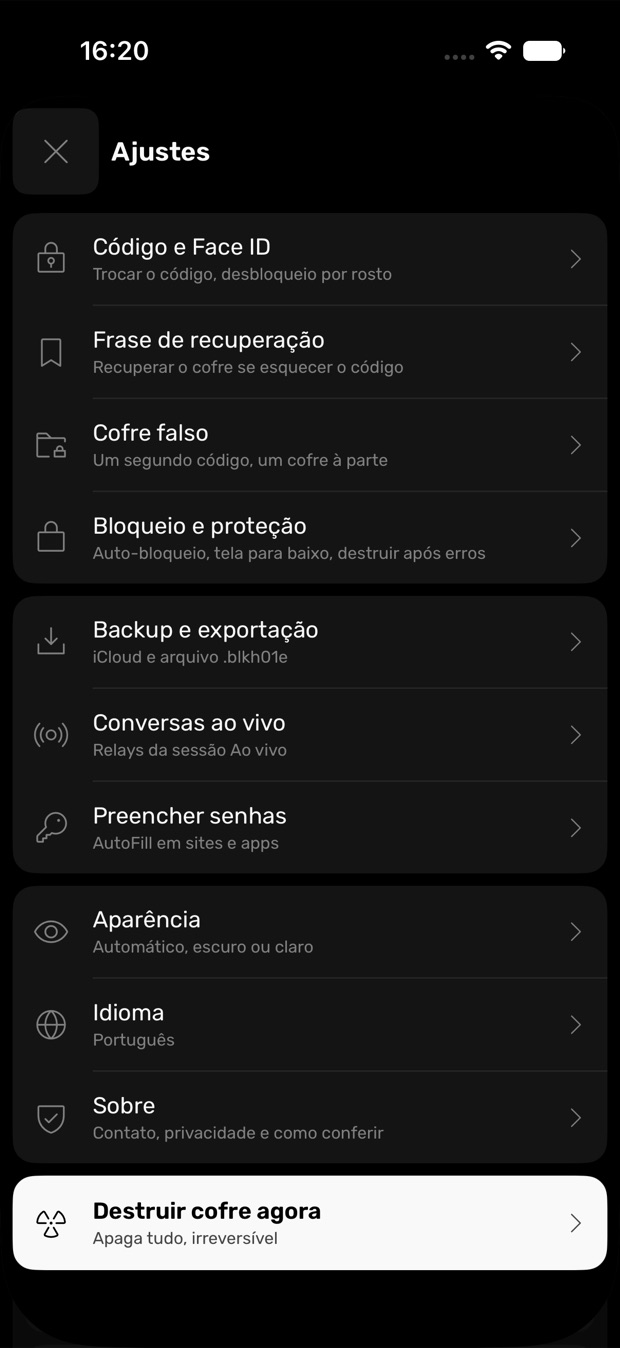
- Gear. Settings. Every configuration in this guide is behind this button.
- Drawers. Tap a drawer (Photos & Videos, Audio, Documents, Passwords, Links, Contacts) to open what is inside it and add new items.
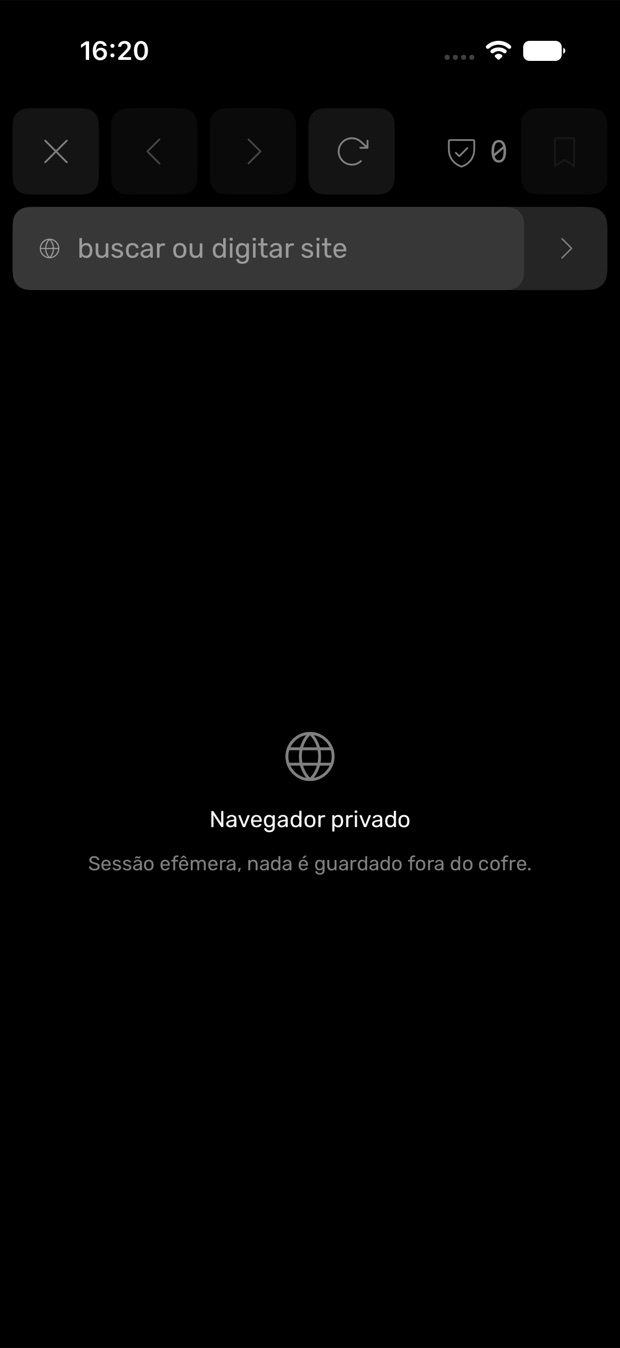
- Browse privately. The bar opens the private browser: a session that keeps no history and blocks trackers. With Hide IP on, it goes out through Tor.
- Conversations, Encryption, Wallets and Hidden apps. The four shortcuts at the bottom: encrypted messages, standalone text and file encryption, seeds and keys, and the apps you chose to hide from the iPhone screen.
- Face ID, Hide IP and Alerts. The quick panel at the foot of the screen, to switch the three on and off without opening Settings.
First steps
Four things to do on day one. Ten minutes now, and the rest of the app makes sense afterwards.
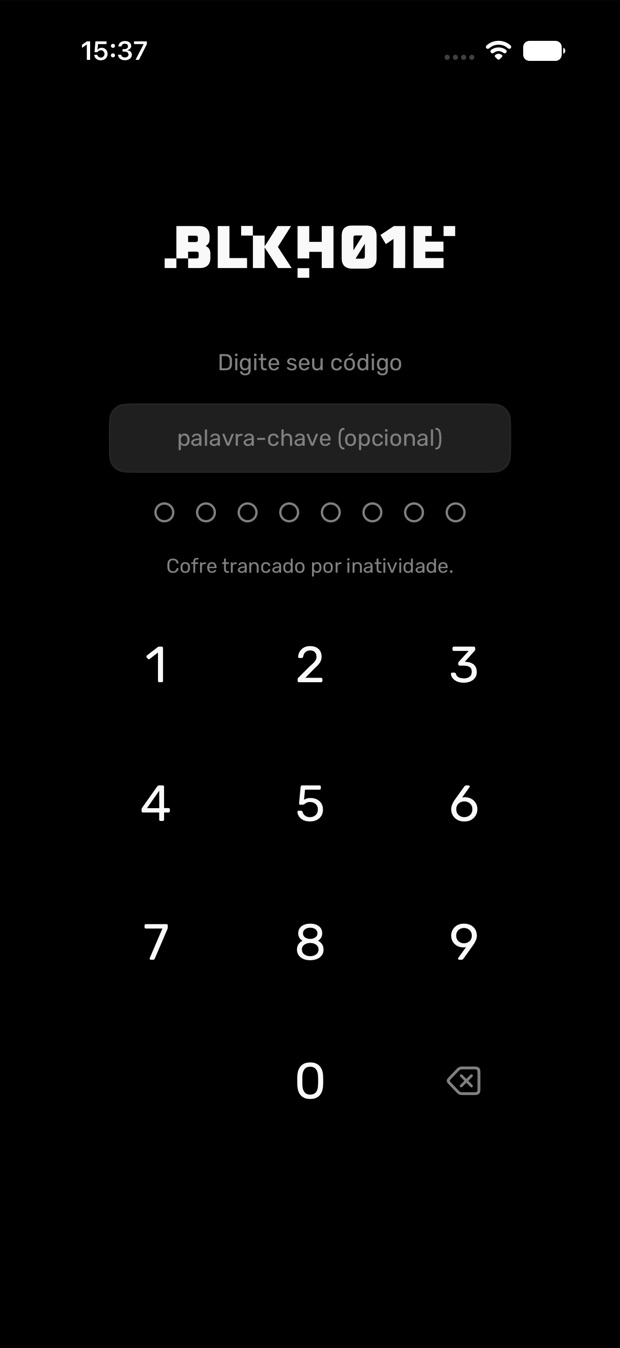
Create your code
Your code is what derives the key that opens everything. It is not stored on any server, so there is no reset link and no support call that recovers it. Six digits or more is enough for daily use, because the phone's security chip limits how fast anyone can try again.
In the appSettingsCode & Face IDChange codeWrite the recovery phrase on paper
Twelve words. They are the only way back if you forget the code. Write them by hand and keep the paper away from the phone. Do not photograph them, do not put them in the cloud, do not save them in another app on the same device. A photo of the phrase in your camera roll undoes the whole point.
In the appSettingsRecovery phraseSet the vault to lock by itself
Choose how long the vault waits with no touch before locking and clearing the key from memory. One minute is a good default. There is also a flip-to-lock option: turn the phone face down and it locks instantly, which is a discreet way to close everything when someone walks up to you.
In the appSettingsLock & protectionAdd something, then export a backup
Put in a first photo or document, then export an encrypted backup file and keep it somewhere other than the phone. If the phone is lost and no backup exists, the content is gone. That is the design working, not a failure.
In the appSettingsBackup & exportWhat you can actually do with it
Each feature below has a situation it was built for. Everything runs on the phone, inside the same encrypted environment.
Keeping things
Photos, videos and audio
The photos of documents you send to an accountant, or a recording of a meeting.
They live encrypted in the vault, with thumbnails generated on the phone. Audio plays straight from memory, so it never becomes a loose file someone can find.
Camera straight to the vault
Photographing your passport or a contract without it landing in your camera roll.
Open the camera from inside the app and the photo is born encrypted. It never touches the iPhone gallery, so it never syncs anywhere.
Documents
A lease, a medical result, a contract with a client.
Import PDFs and text files and read them inside the app, without exporting them to open somewhere else.
Passwords and AutoFill
Replacing the notes app or the piece of paper where the passwords are.
Store the site, the username and the password, generate strong ones, and fill them straight into apps and websites when iOS asks.
Contacts, links and wallets
A source's phone number, or the seed phrase of a crypto wallet.
Contact cards, addresses that open in the private browser, and wallet seeds and keys kept encrypted with a receive QR.
Timed self-destruct
A document you only need for this week.
Set a deadline on an item and it disappears on its own when the time is up, without you having to remember.
Finding things again
Content search
You know you photographed the receipt, but not what you named the file.
The app reads the text inside photos, PDFs and documents and transcribes audio, all on the phone. Then searching for a word inside the document finds it. Turn it on once and let it index.
In the appSettingsContent searchSemantic search
You search for rent receipt and the file is called IMG_4021.
Finds by meaning, not only by exact words, using the on-device model. Nothing about your search leaves the phone.
AI summary
A forty page contract you need the gist of.
The on-device model summarizes it. The summary is shown and discarded, never saved and never sent anywhere. Turn off the internet and it still works, which is the easiest way to prove it to yourself.
Password health
Finding out which of your passwords is weak, repeated or already in a public leak.
Weak and repeated ones are found on the phone. The leak check is optional and sends only five characters of a code derived from the password, never the password itself.
Talking to someone
Adding a contact by QR
You and the other person are in the same room, once.
Each of you scans the other's QR code. That single in-person moment is what makes it impossible for someone in the middle to pose as either of you later.
Encrypted conversations
Talking to a source, a client or a family member without a company in between.
Messages are encrypted end to end, with no account and no server holding the conversation. Each message uses a new key, so a leak of one does not open the previous ones.
Three ways to deliver
No signal, normal internet, or a channel you pick yourself.
Nearby sends straight to a phone next to you with no internet. Live goes over the internet through a relay that only sees encrypted traffic. Or copy the encrypted block and send it through WhatsApp, email, anything.
Standalone encryption
Sending a file to someone who does not have the app.
Encrypt a text, image, audio file or document with a password you agree on by another route, then send it however you like. Only that password opens it.
Protecting yourself
Capture shield in conversations
You open a conversation and you do not want it ending up as a screenshot in anyone's camera roll.
In the conversation list, inside a conversation and in the image viewer, screenshots, recordings and screen mirroring come out without the content: only the logo and the blocked-capture notice appear. iOS itself blanks it. Outside conversations, the app detects the screenshot and warns you right away.
Hidden apps
The banking app or a messenger you do not want showing up when someone picks up your phone.
Pick the apps in the iOS picker and they disappear from the Home Screen, the App Library, search and Siri, and they do not open. BLKH01E only receives an opaque reference, never knows which apps they are, and one switch brings everything back. Out of sight, not off the device: anyone digging through Settings still finds them.
In the appHomeHidden apps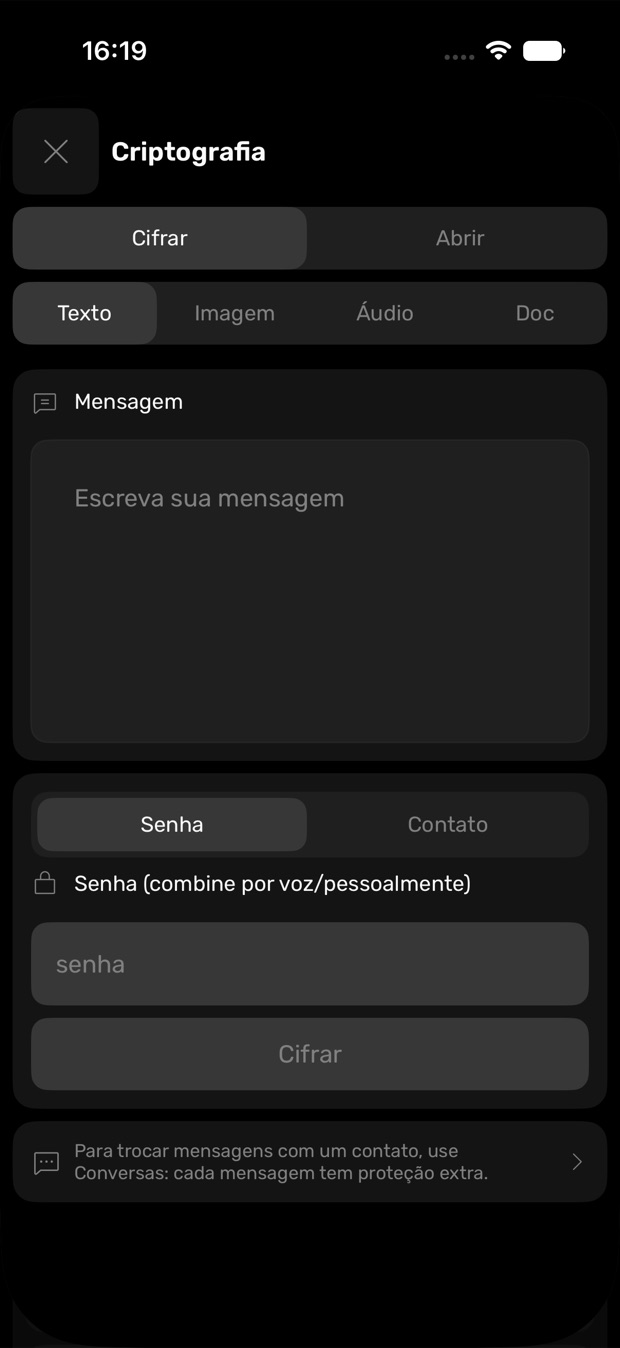
Three levels of protection
This is the part that matters most. Pick the level that matches what you are actually afraid of, and set exactly what it lists. Each level adds protection and takes away some convenience.
Everyday
For anyone who does not want a lost or stolen phone to turn into an exposure. Most people are here.
Set this- A code of six digits or moreIn the appSettingsCode & Face IDChange code
- Face ID on, so locking often is not annoyingIn the appSettingsCode & Face ID
- Lock by inactivity after five minutesIn the appSettingsLock & protection
- Recovery phrase written on paper, kept away from the phoneIn the appSettingsRecovery phrase
- Encrypted backup to your own iCloud DriveIn the appSettingsBackup & export
A lost or stolen phone, someone curious with your device in hand, and leaks from other companies' servers, since your content was never on one.
Someone forcing you to open the vault. At this level, whoever compels you gets the real one.
Hardened
For journalists, lawyers, doctors, accountants and executives. Anyone holding material that belongs to someone else.
Add to level 1- A keyword on top of the numeric code, which makes guessing far harderIn the appSettingsCode & Face IDChange code
- Lock by inactivity after one minute, and flip to lock turned onIn the appSettingsLock & protection
- Every contact added face to face by QR and confirmed by security numberIn the appHomeConversationscontacts
- Timed self-destruct on the most sensitive itemsIn the appItemself-destruct
- An exported .blkh01e file protected by a five or six word phrase, kept offlineIn the appSettingsBackup & export
- Sensitive apps hidden from the Home Screen and searchIn the appHomeHidden apps
Everything in level 1, plus forensic analysis of a seized phone, interception of messages in transit, and someone trying to pose as one of your contacts.
Typing your code more often, and a backup phrase you have to store properly instead of trusting to memory.
Under duress
For anyone who may be forced to open the vault: a border crossing, a seizure, a direct threat.
Add to level 2- A decoy vault created and genuinely filled in, following the steps belowIn the appSettingsDecoy vault
- Face ID off, because a face can be pointed at a phone and a code cannot be taken out of your headIn the appSettingsCode & Face ID
- Lock by inactivity at one minute, flip to lock onIn the appSettingsLock & protection
- Destroy after repeated wrong codes, if losing the content is better than surrendering itIn the appSettingsLock & protection
- No iCloud backup, only an exported file kept elsewhereIn the appSettingsBackup & export
Everything above, plus the moment someone demands that you unlock. You hand over the decoy code, it opens a plausible vault, and the app's interface shows nothing that says a second one exists.
A forensic examiner holding your real code may still infer, from the number of stored files, that a second vault exists. It protects what is in there, not the fact that it exists. The app says exactly this on its own screen.
Setting up the decoy vault properly
Almost everyone gets this one wrong, and a decoy done wrong is worse than none. The app walks you through it, and the order matters.
Do it from the vault you want to protect
Open your real vault first and create the decoy from inside it. The code you confirm has to be the one of the vault that is open now.
Choose a different second code
This is the code you will hand over under pressure. It has to be plausible on its own, so do not make it obviously throwaway like 1111.
Lock, then open with the false code
The decoy is a separate vault. You only reach it by locking and unlocking with the second code.
Fill it with believable content and keep using it
Ordinary photos, a few notes, some real but disposable passwords. A vault that opens onto nothing announces that it is the false one. Go back into it now and then so it looks lived in.
The right password in each place
This is the difference between a vault that holds and one that does not. Your code on the phone and the password on an exported file are not defending against the same attack, and they should not be equally long.
On the phone
The key is tied to a factor inside the iPhone's security chip that cannot be copied out. Copying the storage and attacking it on a powerful computer does not work, because every attempt needs the chip itself. That holds guessing to around one attempt per second, so even a six digit code takes an unreasonable amount of time.
On an exported file
A .blkh01e file has no chip behind it. Each guess is made deliberately slow and expensive, but from there only the strength of your password decides. Eight digits fall in hours to dedicated hardware. Five or six random words hold up even against a state-level attacker.
The rule: keep the daily code short enough that you actually lock the vault, and make the export phrase the strongest thing you can genuinely remember. Five random words beat a short mix of symbols, and a dictionary word with a number at the end is not a phrase.
Mistakes that weaken a strong vault
- An empty decoy vault. A vault that opens onto nothing announces that it is the false one. Fill it with ordinary content and open it now and then.
- The recovery phrase on the phone. A photo of the twelve words in your camera roll, or a note synced to the cloud, cancels out everything else. Paper, somewhere else.
- Reusing the vault code. If the same code protects an account somewhere else, a leak over there becomes a good guess over here.
- Counting on Face ID under pressure. Face ID is there so that locking often is not annoying. It is not a defense when someone can hold the phone up to your face. Turn it off at level 3.
- Confirming a contact by message. A security number confirmed over the same channel proves nothing, because whoever is in the middle can confirm it too. Do it in person.
- Only the cloud backup. An encrypted backup in your iCloud is good. An exported file kept somewhere else is what survives losing the account itself.
- Leaving the lock set to never. With no inactivity lock, whoever picks up the unlocked phone sees everything. One minute costs you almost nothing.
Where the model ends
No encryption protects data that is exposed on a compromised device while it is being used. With the vault open in your hand, whatever you have decrypted is reachable. In conversations, screenshots and recordings come out without the content; elsewhere, screenshots, malware and operating system flaws are outside the model, and the app says so on its own screens. Everything in this guide raises the cost of an attack. None of it makes any system unbreakable.